
Turn One Image into Five Different Camera Shots with AI
Create Five New Images in 15 minutes or Less

This can be done using Nano Banana Pro in Gemini.
🔍Use Cases
This workflow can be used for product photography, social media, character concepts and storyboards. The key is to use the stacking technique described below, in which each image reinforces the next one.
🍌Accessing Nano Banana Pro
First, access Nano Banana Pro and click “🍌Create Images” from the Tools menu. Next, select “Thinking” from the Model menu. Now you’re using Nano Banana, and you can upload the original image you’d like to start with.
📚The Stacking Method
Keep in mind that to get the best outputs for each of the five image generations that you will be creating from the original image, you must ask AI to reference the initial image, as well as all previously generated images.
This is called “stacking” and helps ensure that each image generation is consistent with the original image. Having each new shot build on the previous one gives Gemini more context and therefore allows it to maintain consistency throughout each image generation.
📸 The Five Camera Shots
Here are the five camera shots we will be creating using Nano Banana Pro and the stacking method:
Wide Angle: full scene shot showing the environment.
Medium Angle: subject from the waist up.
High Angle: looking down at the subject.
Dutch Angle: tilted frame.
Profile: side view of the subject
🤖 Generate the 5 Camera Shot Prompts
Before generating any images, we need Gemini to write the prompts for each shot.
Upload your reference image and use the prompt below.
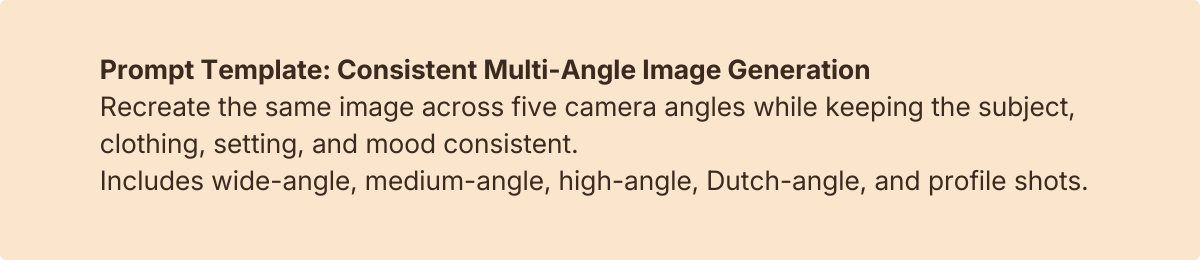
“I want to recreate the image attached into 5 different camera angles while keeping the subject, clothing, setting, and mood consistent. Write me 5 detailed image generation prompts for the following camera shots:
1. Wide-angle shot - Full scene showing the environment;
2. Medium-angle shot - Subject from waist up;
3. High-angle shot - Camera looking down at the subject;
4. Dutch-angle shot - Tilted frame for tension;
5. Profile shot - Side view of the subject.
For each prompt, include:
- The exact camera angle and framing
- Subject description (appearance, clothing, pose)
- Setting and background details
- Lighting and mood
- Any specific details that should remain consistent.
Make each prompt detailed enough to generate a consistent image.”
Gemini will output 5 ready-to-use prompts tailored to your specific image. Save these 5 prompts in a Google document.
🧑🏫How to Generate Each Shot Using the Stacking Technique
Wide-angle landscape shot:
Start a new chat in Gemini with Nano Banana enabled. Upload your original reference image. Copy and paste Prompt 1 from your Google document into Gemini. Generate and save your new image as “Wide-angle shot.”
Medium-angle shot:
Upload your original reference image + the “Wide-angle shot” image. Copy and paste Prompt 2. Generate and save the image as “Medium-angle shot.”
High-angle shot:
Upload your original reference image + the “Wide-angle shot” image + the “Medium-angle shot” image. Copy and paste Prompt 3. Generate and save the image as “High-angle shot.”
Dutch-angle shot:
Upload your original reference image + “Wide-angle shot” + “Medium-angle shot” + “High-angle shot.” Copy and paste Prompt 4. Generate and save the image as “Dutch-angle shot.”
Profile shot:
Upload your original reference image + “Wide-angle shot” + “Medium-angle shot” + “High-angle shot” + “Dutch-angle shot.” Copy and paste Prompt 5. Generate and save the image as “Profile shot.”
💡Pro Tips for Better Results
Be Specific in Your Initial Prompt Request
Gemini’s image outputs will be more consistent if it has more details. If the prompts seem generic, ask Gemini to add more specifics about:
Exact clothing colors and styles
Facial features and expressions
Background elements
Lighting direction
Re-generate Images if Needed
If a shot breaks consistency, regenerate it before moving to the next one. It’s easier to fix one shot than to redo the entire sequence.
Create a New Chat
If the images generated are not consistent, try starting a new chat and uploading all of the reference images you have.
NOTE: It’s best to use a paid Google account to ensure that you receive all five images. Also, keep in mind that AI isn’t perfect, and you may get an output you don’t like. If this happens, you may want to ask the AI to redo the image, which will add to your image quota.